


Page 18 - Demo
P. 18
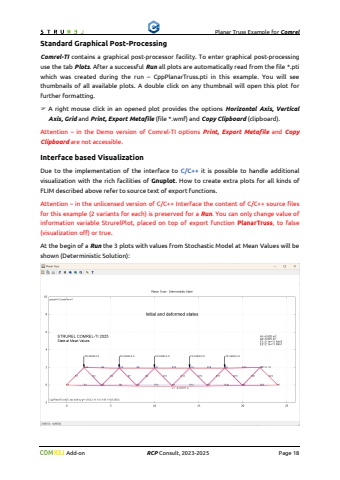
Planar Truss Example for Comrel Add-on RCP Consult, 2023-2026 Page 18Standard Graphical Post-ProcessingComrel-TI contains a graphical post-processor facility. To enter graphical post-processing use the tab Plots. After a successful Run all plots are automatically read from the file *.pti which was created during the run %u2013 CppPlanarTruss.pti in this example. You will see thumbnails of all available plots. A double click on any thumbnail will open this plot for further formatting.%uf046 A right mouse click in an opened plot provides the options Horizontal Axis, Vertical Axis, Grid and Print, Export Metafile (file *.wmf) and Copy Clipboard (clipboard).Attention %u2013 in the Demo version of Comrel-TI options Print, Export Metafile and Copy Clipboard are not accessible.Interface based VisualizationDue to the implementation of the interface to C/C++ it is possible to handle additional visualization with the rich facilities of Gnuplot. How to create extra plots for all kinds of FLIM described above refer to source text of export functions.Attention %u2013 in the unlicensed version of C/C++ Interface the content of C/C++ source file for this example (2 variants) is preserved for a Run. You can only change value of information variable StrurelPlot, placed on top of export function PlanarTruss, to false (visualization off) or true. Additionally, the information variable StrurelPlotMode can be defined in interval from 1 to 3 (see above).At the begin of a Run the 3 plots with values from Stochastic Model at Mean Values will be shown (Deterministic Solution):


